 GetQR
These are illustrative setups, not client stories: the businesses, names, numbers and links are fictional.
1. Appointment booking from the front window
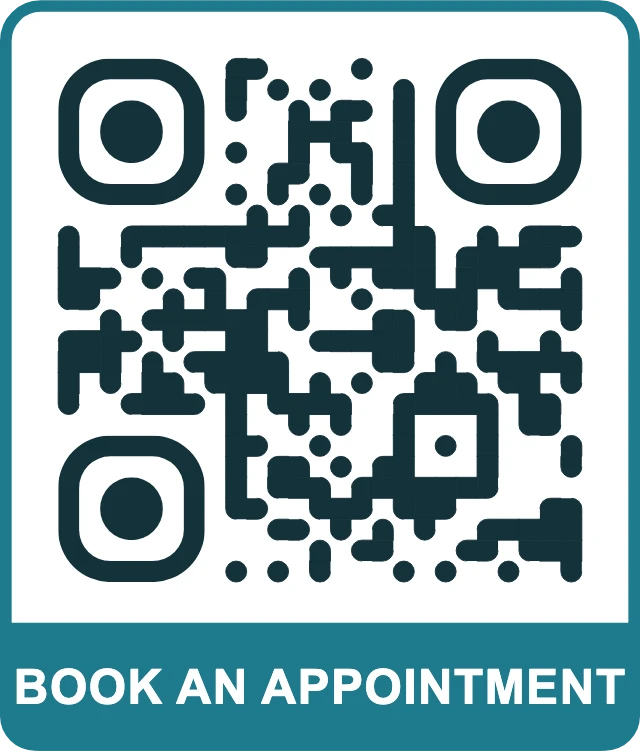
A small family dental practice gets most of its booking calls in the first hour of the morning, when the front desk is also checking in patients. People walking past after hours see the opening times on the door but have no quick way to book.
A code on the window opens the practice's existing online booking page. Patients book when it suits them, and the team spends less time on the phone. Because the code is dynamic, the practice can point it to a different booking system later without replacing the window sticker.
How to set it up on GetQR
- Type: Link, Mode: Dynamic
- Destination: the booking page on your own website or booking provider, for example https://example.com/book
- Frame: Label below, text BOOK AN APPOINTMENT
- Error correction: Q, so the code still reads if the sticker gets scratched or dirty
- Save the private management link somewhere the whole team can find it, such as the practice manager's password manager
Where to put it
Print it at least 10 cm wide on the inside of the front window, at about chest height, facing out. Avoid spots that catch direct sun glare in the afternoon. Repeat a smaller copy on appointment cards.
Tip: Test the window sticker at night from the sidewalk. Shop lights reflecting off glass are the most common reason a window code fails to scan.
2. Directions to a clinic that is hard to find
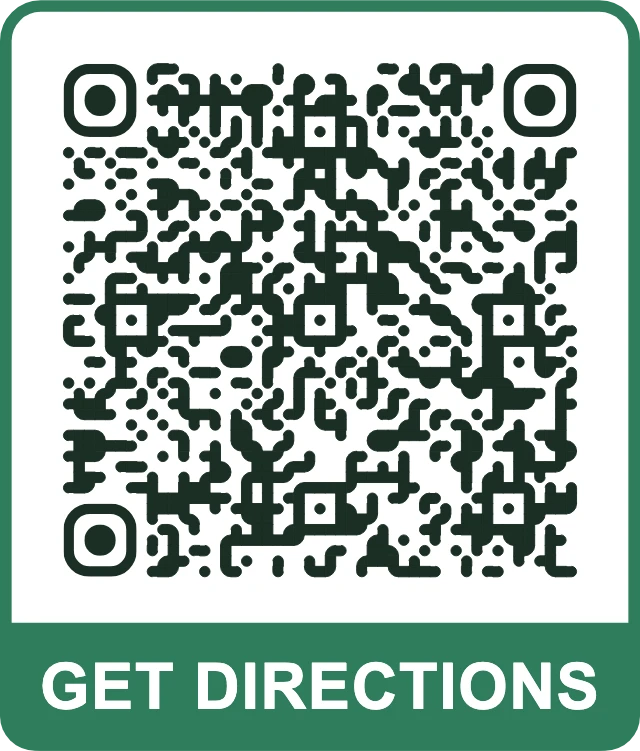
A veterinary clinic sits behind a retail park, and the main entrance is round the side, next to a separate parking lot. New clients often ring from the wrong parking lot with a nervous dog in the back seat.
A location code on the confirmation letter and the website's printable welcome sheet opens the map app on the visitor's phone with the right entrance already selected. Clients arrive at the correct door, and reception takes fewer calls asking where the building is.
How to set it up on GetQR
- Type: Location, Mode: Dynamic
- Query: the clinic's street address plus a short note such as rear entrance, or exact coordinates of the door
- Frame: Label below, text GET DIRECTIONS
- Dots: Extra-rounded, Color: dark green on white
Where to put it
Place it on printed confirmation letters, welcome packs and the back of business cards. If you have a roadside sign, a code there helps passengers rather than drivers; keep it small and add the address in text for anyone who can't scan.
Tip: Use coordinates for the actual entrance rather than the postal address. Map apps often place a pin in the middle of a building or on the wrong side of a large site.
3. Call reception from a sign or a leaflet
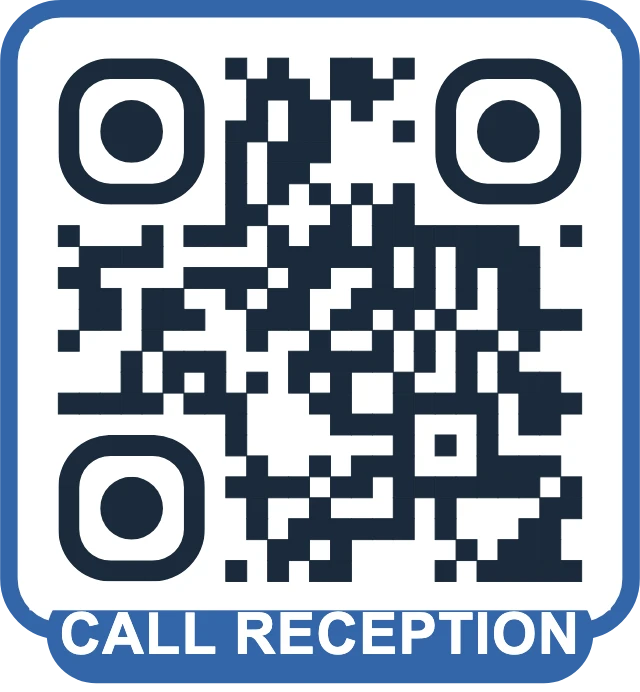
Some patients still prefer to talk to a person, and older patients may find booking websites frustrating. Typing a phone number from a poster is error-prone, especially in a hurry.
A phone code on the opening-hours sign or a general information leaflet starts a call to reception in one tap. It is a static code, so it works for as long as the number stays the same, with nothing to manage.
How to set it up on GetQR
- Type: Phone, Mode: Static
- Phone: the reception number in international format, for example +1 555 0142 318
- Frame: Badge, text CALL RECEPTION
- Print the number in text right next to the code as well
Where to put it
Put it on the opening-hours sign by the entrance and on leaflets. A size of 3 to 4 cm is enough for a leaflet held in the hand; use 8 cm or more for a wall sign read from a step away.
Tip: Do not use this code for an emergency line. Print emergency numbers in large text instead, so nobody has to rely on a camera working in a stressful moment.
4. One page for patient forms and aftercare leaflets
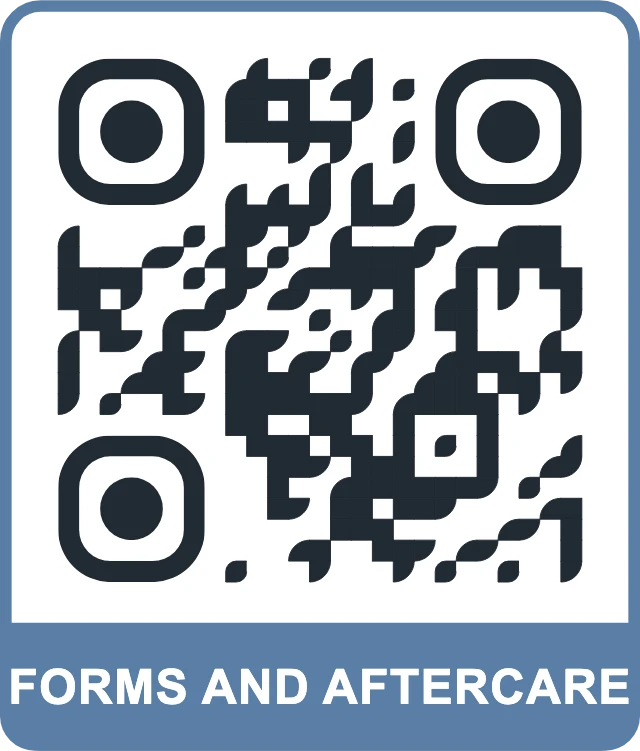
A physiotherapy and sports medicine clinic hands out a registration form to new patients and a stack of aftercare sheets after treatments. Paper forms get lost, and printed aftercare goes out of date whenever a clinician updates the advice.
A multi-link page solves the navigation problem: one code on the welcome card opens a short page with buttons to the clinic's own forms and aftercare pages. The forms themselves stay on the clinic's secure website, which handles login, encryption and storage. The QR code and the link page only point there; they never collect or hold patient information.
How to set it up on GetQR
- Type: Multi-link page (always dynamic)
- Title: Patient forms and aftercare
- Buttons: New patient registration, Medical history form, Aftercare after treatment, Aftercare after dental extraction, each linking to a page on your own secure site
- Frame: Label below, text FORMS AND AFTERCARE
- Ask whoever manages your website to confirm each form page uses HTTPS and your usual patient-data safeguards
Where to put it
Print it on new-patient welcome cards, appointment reminders sent by post, and a small sign at the reception desk. Hand clinicians a card with the same code to give out at the end of a treatment.
Tip: Never put names, dates of birth, record numbers or anything about a condition into a QR code or into the link itself. A code can be photographed and scanned by anyone who sees it.
5. Guest Wi-Fi in the waiting room
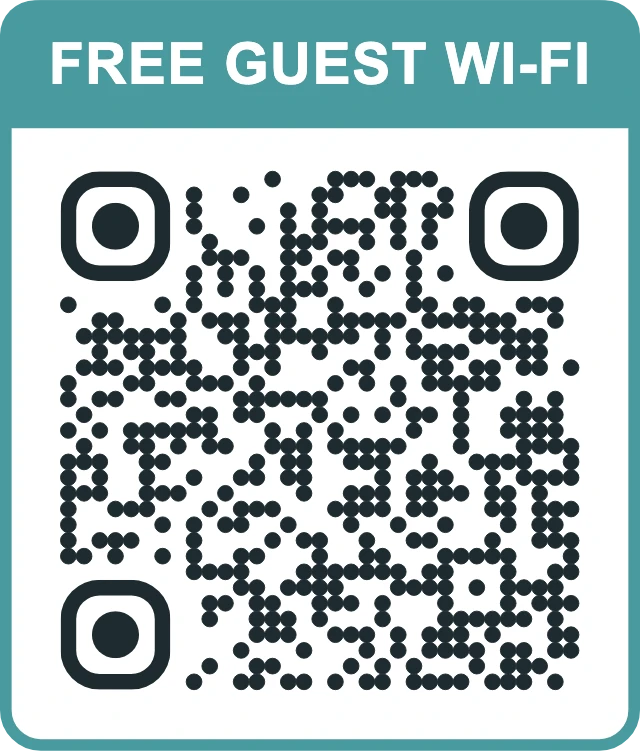
Waiting times vary, and patients and pet owners often ask for the Wi-Fi password at the desk. Writing it on a whiteboard invites mistyping and puts the password in every photo taken in the room.
A Wi-Fi code connects phones to the guest network in one scan. Use a separate guest network that is isolated from the network your practice software, imaging equipment and staff computers run on.
How to set it up on GetQR
- Type: Wi-Fi, Mode: Static
- SSID: the guest network name, for example Example-Clinic-Guest
- Security: WPA, Password: the guest network password
- Frame: Top, text FREE GUEST WI-FI
- If you change the guest password, make a new code and replace the sign the same day
Where to put it
Put a table tent or a framed A5 sign on the waiting-room side table and near the seating, at seated eye level. Keep it away from the reception computer screen so nobody leans over the desk to scan.
Tip: Confirm with your IT provider that guests can't see other devices on the guest network. This is the part that protects patient data, not the QR code itself.
Getting the basics right for clinics
Clinics have stricter rules than most businesses, so keep every code simple and boring. A QR code is just a pointer: a web address, a phone number, a map query or network details. Treat everything on the printed side as public, because it is.
Health information belongs on systems built for it. If you collect forms, they should live on your clinic's own secure website or patient portal, with the protections your regulator and your IT provider expect. The code only takes the patient to the right page.
Keep the wording on frames and signs factual. A code labeled BOOK AN APPOINTMENT or AFTERCARE AFTER EXTRACTION is clear. Avoid health claims or promises about outcomes on anything printed next to a code.
- No patient names, record numbers, dates of birth or conditions inside any code or link
- Forms and portals on your own secure site, never on a third-party link page
- Guest Wi-Fi on a separate network from clinical systems
- Text fallback next to each code: the web address, phone number or street address
- High contrast and a minimum of 3 cm for anything held in the hand
Static or dynamic: what to choose for each code
Static codes are encoded straight into the pattern and never expire. They suit things that rarely change, such as a reception phone number or guest Wi-Fi details. If the detail changes, you print a new code.
Dynamic codes go through a short link like get-qr.org/r/ followed by a code, and you can change the destination later using a private management link. GetQR doesn't require an account, so store that link carefully; it can't be recovered if you lose it, although the same browser remembers it. Dynamic codes are a good fit for booking pages, directions and the forms page, because those are the things most likely to move when you change providers or redesign the website.
Dynamic codes in GetQR also show basic stats: total scans, scans per day over the last 30 days, country and device type. No IP addresses are stored. For a clinic, this is useful for simple questions, such as whether the window sticker gets scanned at all, without tracking individual patients.
Printing and testing before you roll out
GetQR is free, with no sign-up, ads or watermarks, so you can make a test batch and try it before printing hundreds of cards. Export as SVG or PDF for professional printing, or PNG between 200 and 2000 px for documents and screens.
Scan each printed proof with at least two different phones, including an older one, in the actual light of the room where it will hang. Check that a logo in the middle of the code doesn't stop it scanning; if it does, raise error correction to H or make the logo smaller.
Frequently asked questions
Can I put a patient's appointment details in a QR code?
It's better not to. Anyone who sees or photographs the code can read what's inside. Send appointment details through your booking system or patient portal, and use QR codes only to point people to those secure pages.
Is it safe to collect patient forms through a QR code?
The code itself collects nothing; it opens a web page. Safety depends on that page. Host forms on your clinic's own secure website or patient portal that meets your data protection obligations, and use the code only as a shortcut to it.
What happens if we change our booking system?
If you used a dynamic code, open the private management link and change the destination. The printed code keeps working. If you used a static code, you will need to print a new one.
Do dynamic codes track our patients?
GetQR stats are aggregate only: total scans, daily counts, country and device type. No IP addresses are stored, and there is nothing that identifies a person.
How big should a QR code be in a waiting room?
For a sign read from a seat about a meter away, aim for 6 to 8 cm. For cards and leaflets held in the hand, 3 cm is usually enough. Always test from the distance people will actually scan from.